How to get started with Interactive Texting in the UK
How do I enable Interactive SMS?
Only users with the “Maintain SMS Messaging settings” can enable or disable this feature.
Step 1:
Navigate to Setup > SMS messaging > click Enable interactive messaging.
Step 2:
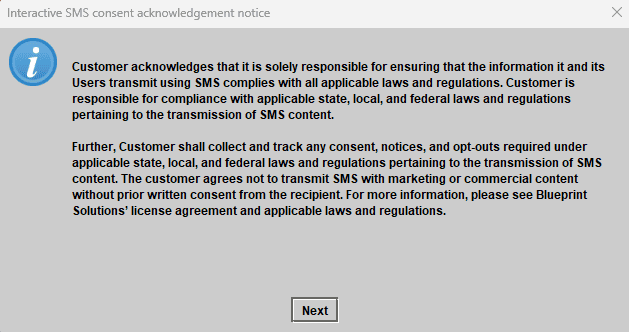
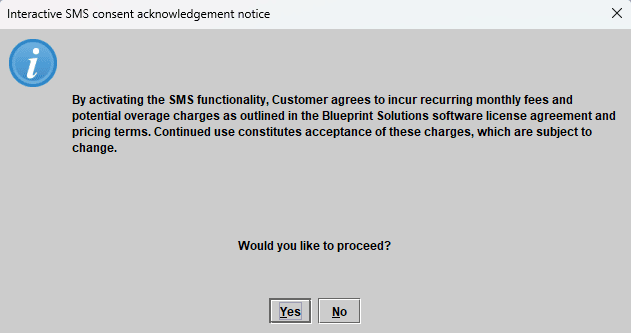
You will receive an SMS consent notice. Please read carefully and click Next, then Yes to proceed.
Step 3:
Highlight a location and click Edit details. Select one of the following options:
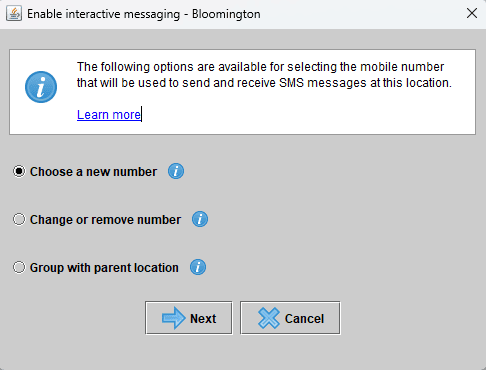
Select option: Choose a new number
This option allows users to search for and order a new SMS number for Interactive SMS. To narrow the results, you can enter optional criteria such as a dialing code or the digits the number ends with.
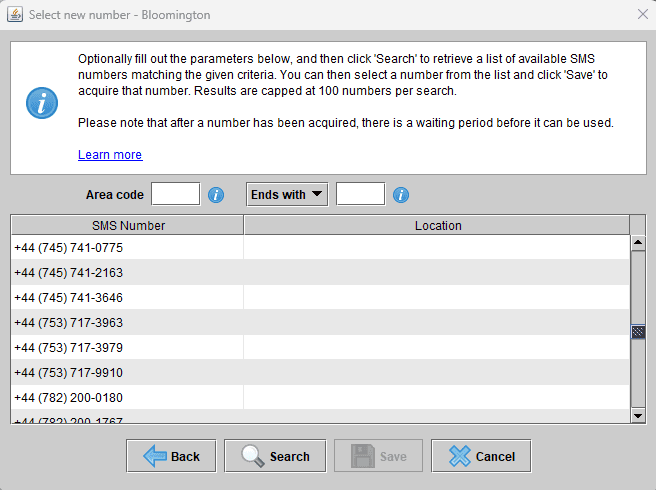
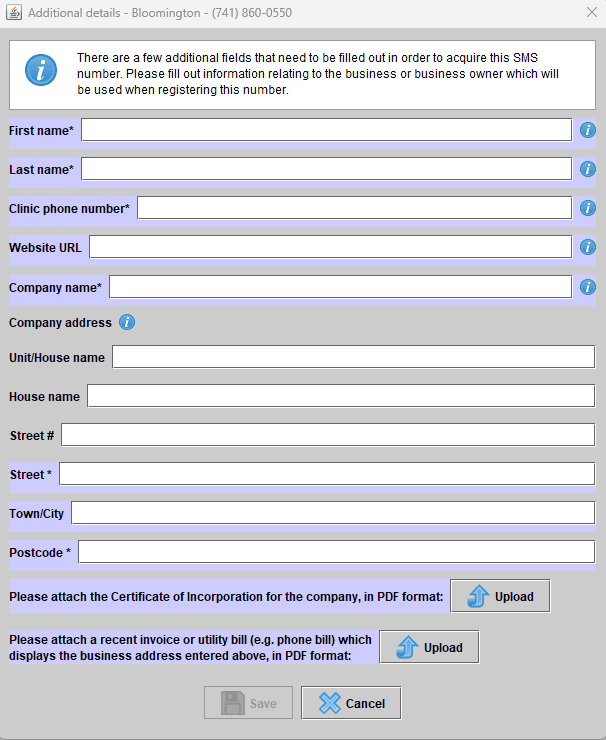
Finish by adding the additional details including attachments for Certificate of Incorporation and a recent invoice or utility bill (e.g. Mobile phone bill) which displays the business address.
To change, remove, or group a phone number with a parent location, see the user guide here.
Step 4:
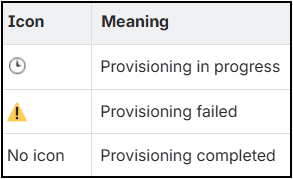
Numbers pending verification will be indicated with a clock icon, while those that fail verification will be marked with a warning icon.
Step 5:
After your number(s) have been successfully verified, you may begin interacting with patients.
—
Click here to learn more about the Messaging Centre and the patient Messaging tab.


No comments